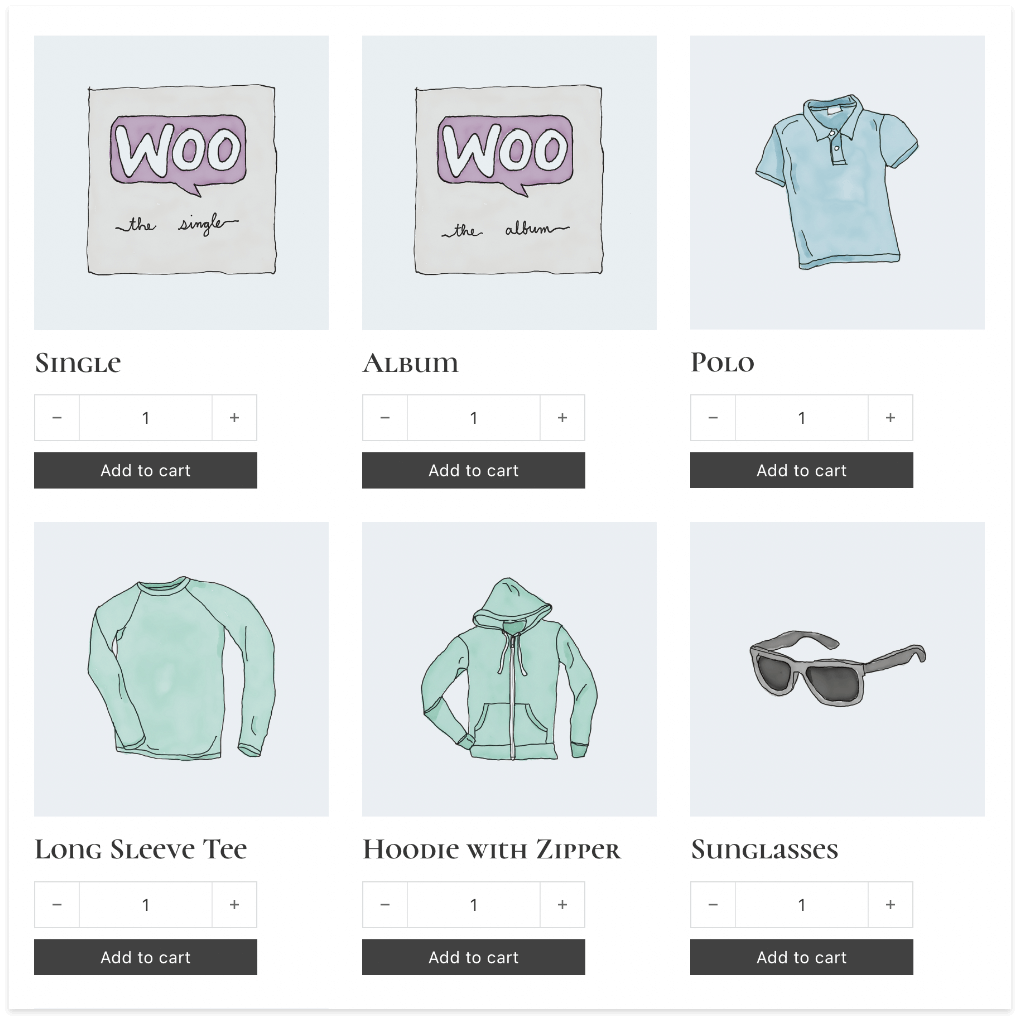
Ever looked at your WooCommerce product page and felt like “Add to Cart” sounds a little too plain?
It happens.
Sometimes your store needs something that feels a bit more like you, maybe Buy Now, Get Yours Today, or even Reserve Yours.
The nice part is, this is one of those WordPress changes that does not need a full rebuild. In many cases, a small tweak like this can be handled through a custom WordPress development service without turning it into a large project.
You don’t need to edit core files.
You don’t need a bulky plugin either.
A small code snippet can do the job.
Why this small change matters
This button is where the user finally decides to take action.
So even though it looks like a tiny detail, it affects how the product feels.
For example, if you sell premium products, “Add to Cart” can feel a little too generic. If you sell limited items, a more specific label may feel clearer and more intentional.
It’s a small UI tweak, but sometimes those are the ones users notice most.
The simple way to change the button text
If you want the same text across your WooCommerce store, you can use this snippet in your child theme’s functions.php file or in a custom functionality plugin:
add_filter( ‘woocommerce_product_single_add_to_cart_text’, ‘wdm_custom_cart_button_text’ );
add_filter( ‘woocommerce_product_add_to_cart_text’, ‘wdm_custom_cart_button_text’ );
function wdm_custom_cart_button_text( $text ) {
return __( ‘Buy Now’, ‘woocommerce’ );
}
That’s it.
This changes the button text to Buy Now on both:
- the single product page
- the shop or archive page
Want different text on different pages?
You can do that too.
For example, maybe you want Buy Now on the product page, but something softer like View Product on the shop page.
Here’s how:
add_filter( ‘woocommerce_product_single_add_to_cart_text’, ‘wdm_single_product_cart_text’ );
function wdm_single_product_cart_text( $text ) {
return __( ‘Buy Now’, ‘woocommerce’ );
}
add_filter( ‘woocommerce_product_add_to_cart_text’, ‘wdm_archive_product_cart_text’, 10, 2 );
function wdm_archive_product_cart_text( $text, $product ) {
if ( $product && $product->is_type( ‘simple’ ) ) {
return __( ‘View Product’, ‘woocommerce’ );
}
return $text;
}
This version is a little safer because it respects product type as well.
So if WooCommerce needs to show something like Select options for variable products, it won’t break that logic.
One important thing to avoid
Do not edit WooCommerce plugin files directly.
It may seem like the fast route, but the moment WooCommerce updates, your changes are gone.
Using filters like this is the cleaner way to do it.
A small tip before you change the text
Before replacing the default label, ask yourself one thing:
Does this new text actually make the action clearer?
That matters more than making it sound fancy.
A button should help the user move forward, not pause and think.
When this works best
This kind of customization works well when you want to improve the store UI without getting into heavy development.
It’s especially useful when:
- Your design is mostly fine
- You just want sharper microcopy
- You want a quick storefront improvement
If you’re planning bigger UX changes, then this is just one small part of the picture.
That’s pretty much it
WordPress and WooCommerce give you a lot of room to fine-tune the experience, and this is one of the easiest places to start.
It’s a small customization, but it can make your store feel a little less default and a little more intentional.
And if you want to go beyond quick tweaks and make sure the changes fit your store properly, it helps to work with a WordPress customization expert who understands both the technical side and the user experience side.