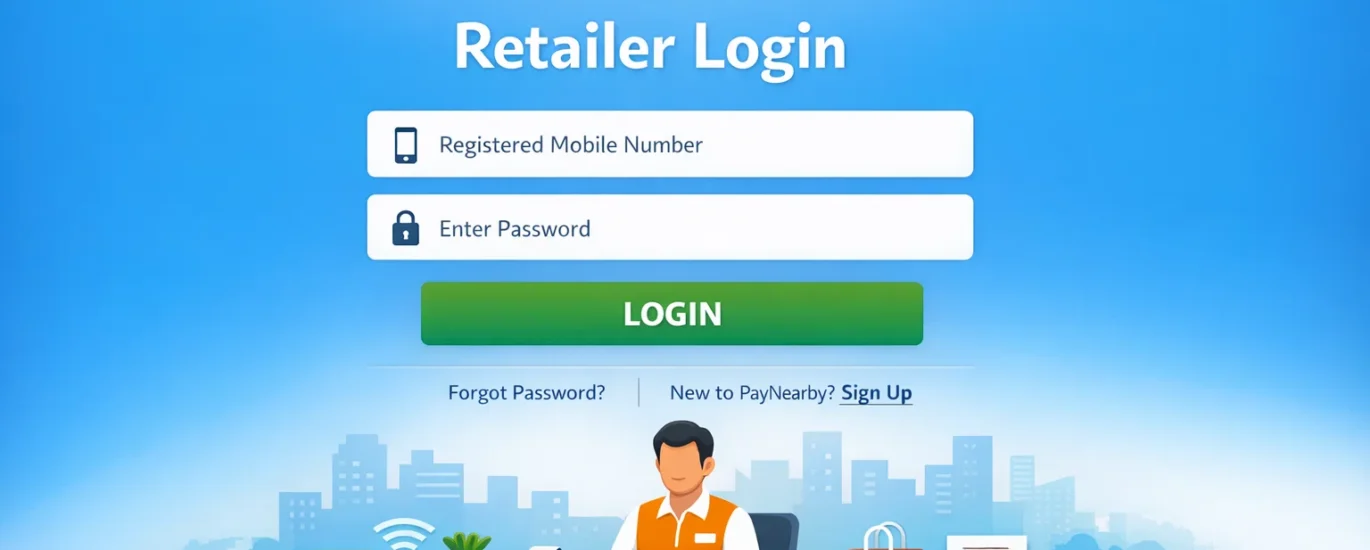
Introduction
PayNearby is one of India’s leading fintech and digital banking platforms that empowers local kirana stores, mobile shops, and small merchants by turning them into mini-banks. Through PayNearby, retailers can offer essential financial services such as AEPS cash withdrawal, domestic money transfer (DMT), bill payments, mobile/DTH recharge, micro ATM services, insurance, and more—all from a single app or web dashboard.
To access and manage these services, every merchant must complete the PayNearby retailer login. Logging in allows retailers to track transactions, check commissions, manage customers, download reports, and use new features launched by PayNearby. Whether you are a new user setting up your account or an existing merchant facing login issues, understanding the correct login process is critical.
Many retailers commonly face problems like forgotten passwords, login not working, OTP not received, face login failure, or confusion between app login and web portal login. New users also struggle with registration, KYC completion, and finding their PayNearby retailer ID.
That’s why this 2026 updated guide is created specially for Indian users. In this article, you’ll learn:
- How to download the official PayNearby app safely
- PayNearby retailer app login step by step
- PayNearby retailer portal (web) login process
- How to reset your password
- Solutions to common login problems
- FAQs and earning tips for retailers
If you’re searching for “paynearby login kaise kare”, this guide has you covered from start to finish.
Table of Contents
How to Download the Official PayNearby Retailer App
Before attempting the paynearby retailer login, make sure you are using the official app. Fake or modified apps can lead to account blocking or financial loss.
Official Sources to Download PayNearby App
- Google Play Store (recommended for Android users)
- Official website: https://paynearby.in/
⚠️ PayNearby is primarily available for Android devices. iOS users usually access services via the web portal or partner solutions.
Steps to Download and Install Safely
- Open Google Play Store on your Android phone
- Search for “PayNearby Retailer App”
- Check the developer name: PayNearby Solutions Pvt. Ltd.
- Tap Install and wait for the app to download
- Open the app after installation is complete
Important Safety Tips
- ❌ Do not download APKs from Telegram, WhatsApp, or random websites
- ✅ Always update the app from Play Store to get latest 2026 security updates
- 🔒 Never share your OTP, password, or MPIN with anyone
PayNearby Retailer Login via Mobile App – Step by Step
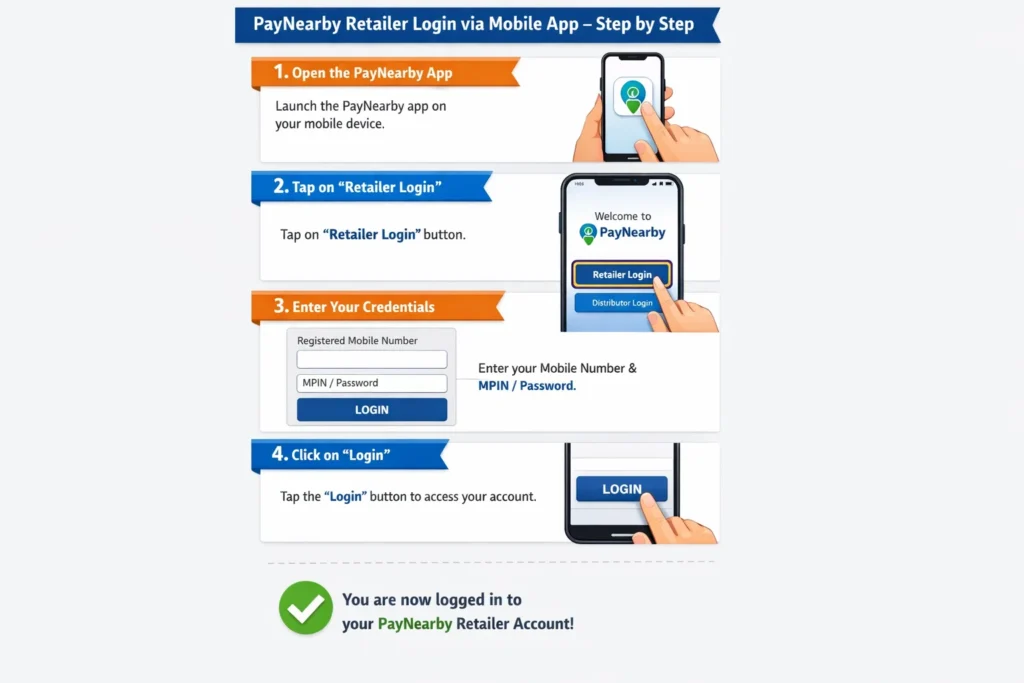
The paynearby retailer app login is the most common and convenient method used by merchants.
A. First-Time Login / Registration Process
If you are a new retailer, follow these steps:
- Open the PayNearby App
- Enter your mobile number (same number used during onboarding)
- Click on Get OTP
- Enter the OTP received on your phone
- Set your login password / MPIN
- Complete basic KYC (PAN, Aadhaar, shop details) if prompted
Once verified, your PayNearby retailer ID will be created automatically.
Regular PayNearby App Login Steps
For existing users:
- Open the PayNearby app
- Enter your registered mobile number or retailer ID
- Enter your password or MPIN
- Tap Login
- You will be redirected to the dashboard
PayNearby Face Login / Biometric Authentication
PayNearby supports face login and biometric authentication on supported devices (2026 version).
How to use face login:
- Enable Face ID or fingerprint from App Settings
- Allow camera and biometric permissions
- On the login screen, select Face Login
- Authenticate using your face or fingerprint
Note: Face login may fail in low light or if camera permission is denied.
Tips for Smooth App Login
- Keep your app updated
- Use a stable internet connection
- Avoid logging in from multiple devices simultaneously
- Clear app cache if login is slow
PayNearby Retailer Web Portal Login Process
Apart from the app, PayNearby also offers a retailer web portal for reports and account management.
Official PayNearby Retailer Login URLs
Step-by-Step Web Login Process
- Open Google Chrome or Microsoft Edge
- Visit one of the official URLs above
- Enter your PayNearby retailer ID / username
- Enter your password
- Click Login
You will now be able to:
- Download transaction reports
- Check settlement details
- View commission statements
Browser & Security Tips
- Use Chrome (latest version) for best performance
- Do not save passwords on public computers
- Always log out after use
Forgot Password? How to Reset PayNearby Retailer Password
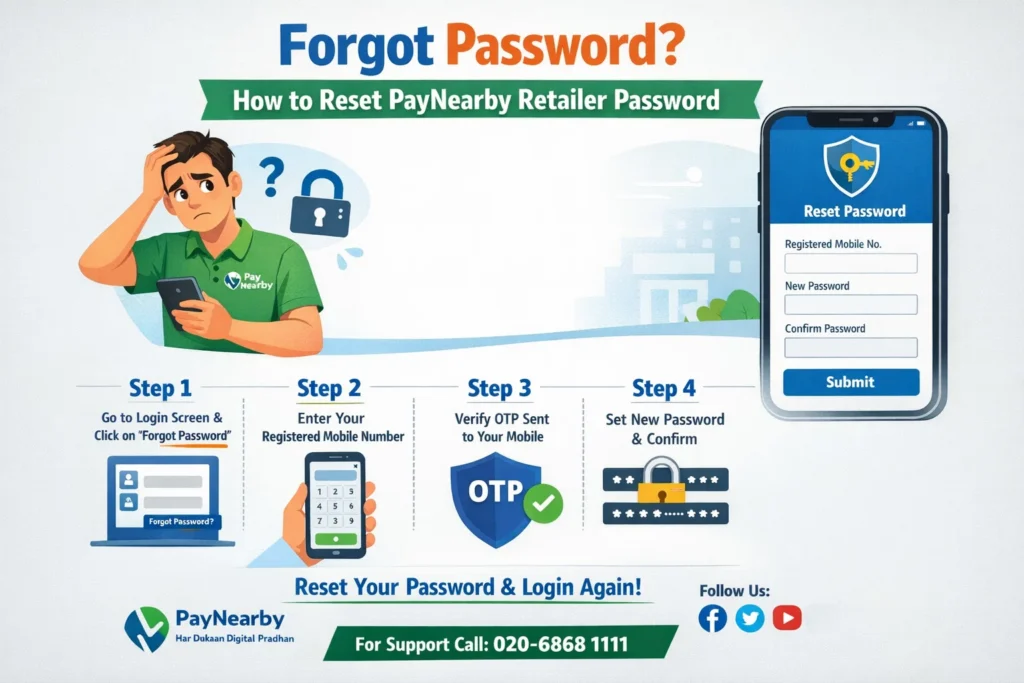
Forgot your login password? Don’t worry—paynearby password reset is simple.
Steps to Reset Password
- Open the PayNearby app or login page
- Click on “Forgot Password”
- Enter your registered mobile number / retailer ID
- Request OTP
- Enter the OTP received
- Set a new strong password
- Login again using the new password
If OTP Is Not Received
- Check network signal
- Wait 60 seconds and retry
- Ensure DND is not blocking messages
- Contact PayNearby support if issue continues
Common PayNearby Login Problems and Solutions
| Problem | Possible Reason | Solution |
|---|---|---|
| Invalid credentials | Wrong password or ID | Use “Forgot Password” |
| App not opening | Outdated app | Update from Play Store |
| OTP not received | Network/DND issue | Retry or contact support |
| Face login failed | Camera/permission issue | Enable permissions |
| KYC pending | Documents not approved | Complete KYC |
| Account blocked | Policy violation | Contact customer care |
| Slow login | Weak internet | Switch to stable network |
| Web login not working | Wrong browser | Use Chrome |
| Multiple device login error | Security restriction | Logout from other devices |
Extra Tips to Earn More as a PayNearby Retailer
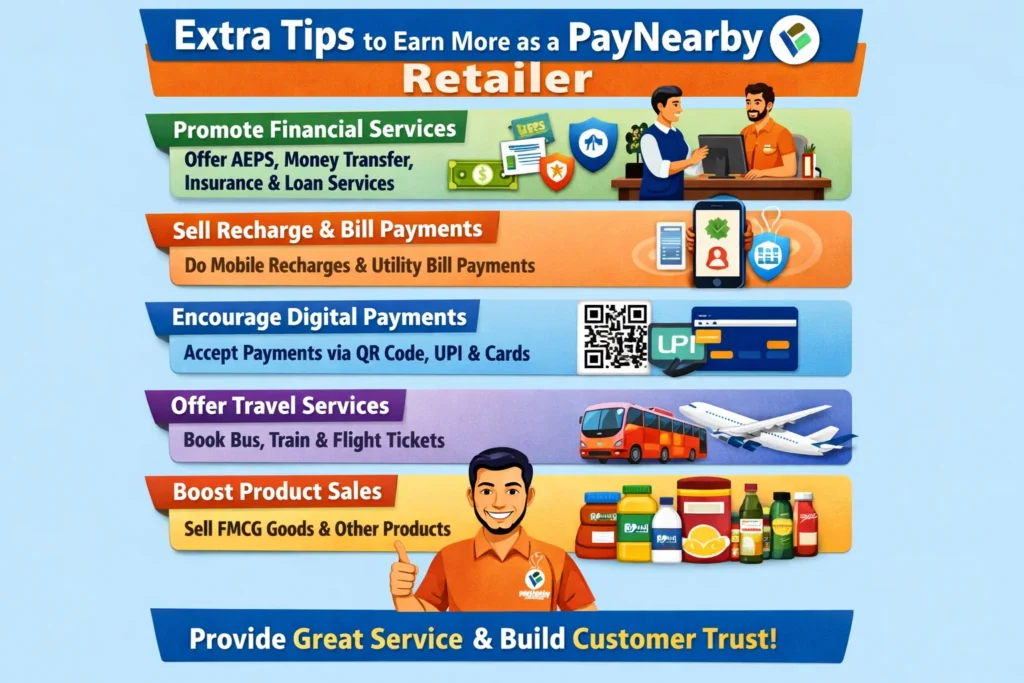
Once you complete the paynearby retailer login, explore all services to increase earnings:
- AEPS cash withdrawal & balance inquiry
- Money transfer (DMT) for customers
- Electricity, gas, water bill payments
- Mobile, FASTag & DTH recharge
- Khata & micro services
👉 Completing full KYC unlocks higher transaction limits and better commissions.
👉 Promote services locally to increase daily footfall.
Frequently Asked Questions (FAQs)
What is PayNearby retailer ID?
Your retailer ID is a unique username assigned after successful registration.
How to get PayNearby retailer login ID?
It is generated automatically during onboarding and sent via SMS/email.
PayNearby login kaise kare?
Use the mobile app or web portal with registered mobile number and password.
What is the difference between app and web login?
App is for daily transactions; web portal is mainly for reports and settlements.
Can I use face login on all phones?
No, only on devices that support biometric authentication.
What if my PayNearby account is blocked?
Contact customer support with your retailer ID.
Is PayNearby app free to use?
Yes, downloading and logging in is completely free.
Official PayNearby customer care number?
📞 +91 1600 318 017 (official support)
Can I login on multiple devices?
Limited access is allowed; frequent switching may cause issues.
Conclusion
The PayNearby retailer login is your gateway to running a profitable digital banking service from your shop. Whether you prefer the mobile app login for daily transactions or the retailer web portal for reports, PayNearby offers a secure and user-friendly system for Indian merchants.
In this 2026 updated guide, we covered everything—from app download and login steps to password reset, face login, common problems, and FAQs. By following the correct process and completing full KYC, you can unlock higher limits, smoother transactions, and better commissions.
👉 Download the PayNearby app only from official sources, login today, and start offering essential financial services to your customers.
If you’re facing any login issues, drop your questions in the comments—we’re here to help you succeed 🚀